🐳 Docker – Day 1: Container Fundamentals
Why Containers Exist and How Docker Actually Works (Production View)

🎯 Purpose of Day 1 (Why This Day Matters)
Most people learn Docker commands.
Very few people understand why Docker behaves the way it does.
This gap causes:
Confusion during incidents
Wrong architectural decisions
Fear of containers in production
Blind copy-pasting of Dockerfiles
Day 1 is about fixing the mental model.
If you understand why containers exist and how Docker uses Linux internals, everything else (Dockerfiles, Kubernetes, CI/CD) becomes logical instead of magical.
📌 The Real Problem Containers Were Created to Solve
Before Containers (Reality)
Teams faced:
Applications tightly coupled to OS versions
Dependency conflicts (Python, OpenSSL, libc)
Environment drift between dev, QA, prod
Manual server setup and snowflake servers
Heavy virtual machines for small services
Even with configuration management:
Provisioning was slow
Rollbacks were painful
Debugging environment issues wasted time
📌 The core problem was not deployment — it was consistency.
🧠 Why Virtual Machines Were Not Enough
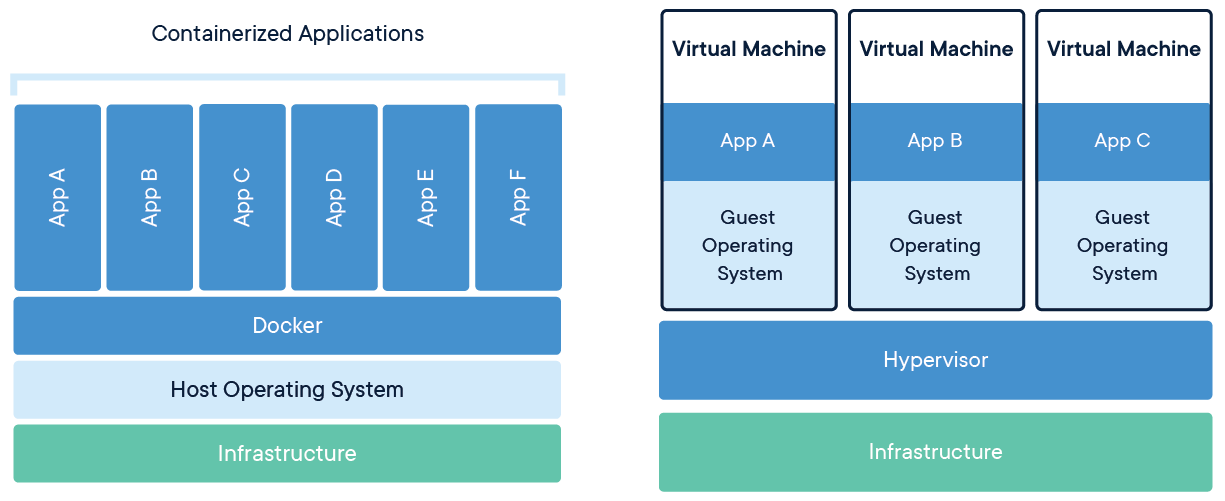
Virtual Machines solved isolation, but introduced new problems:
| VM Problem | Impact |
|---|---|
| Full OS per app | High memory & CPU usage |
| Slow boot time | Poor scaling |
| Heavy disk images | Slow CI/CD |
| OS patching per VM | Operational overhead |
📌 VMs isolate hardware
📌 Containers isolate processes
This distinction is critical.
🔍 What a Container REALLY Is (How It Works Internally)
A container is just a Linux process running with restrictions.
Docker uses Linux kernel features, not magic:
1️⃣ Namespaces (Isolation)
Namespaces isolate:
Process IDs (PID)
Network interfaces
Mount points
Users
Hostnames
👉 This is why a container thinks it’s alone.
2️⃣ cgroups (Resource Control)
Control:
CPU usage
Memory limits
Disk I/O
👉 This prevents one container from starving others.
3️⃣ Union Filesystems (Images)
Images are built using layered filesystems:
Read-only base layers
Thin writable layer per container
👉 This makes images:
Small
Fast
Reusable
📌 Containers share the same kernel, not the same filesystem.
⚠️ Key Understanding (Most Important Line)
Containers are isolated processes, not isolated operating systems
This explains:
Why containers start in milliseconds
Why kernel bugs affect all containers
Why you can’t run Windows containers on Linux hosts
Why containers feel “lightweight”
🧰 What Docker Actually Does (How Docker Fits In)
Docker is not the container technology.
Docker is:
A CLI + API
A daemon (
dockerd)A workflow engine
Docker handles:
Image building
Image storage
Container lifecycle
Networking
Volumes
Under the hood:
📦 Image vs Container (Why the Difference Exists)
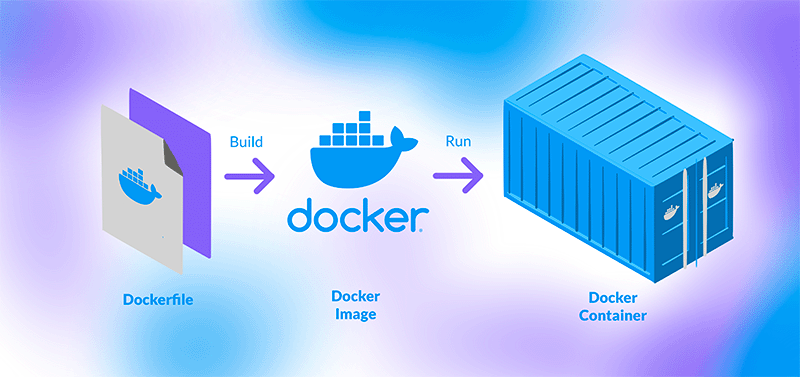
Docker Image (WHY)
Immutable
Versioned
Portable
Reproducible
Purpose:
“Build once, run anywhere”
Docker Container (WHY)
Runtime execution
Disposable
Ephemeral
Purpose:
“Run, fail, destroy, replace”
📌 This is why containers should never store important data.
❌ Common Wrong Mental Model (Very Costly in Production)
Treating containers like servers
Examples:
SSH into containers
Apply hotfixes inside containers
Store logs and data inside container filesystem
Why this fails:
Containers are replaceable
Changes are lost on restart
Scaling breaks stateful assumptions
📌 Containers should be immutable at runtime.
🧰 Docker Installation (Environment Setup)
Docker installation steps vary across operating systems (Ubuntu, RHEL/CentOS, macOS, Windows).
To avoid misconfiguration, always refer to the official Docker documentation for your specific OS.
👉 Official docs: https://docs.docker.com/engine/install/
Below are the recommended and production-safe steps for Ubuntu, which I am using in this setup.
OS requirements
To install Docker Engine, you need the 64-bit version of one of these Ubuntu versions:
Docker Engine for Ubuntu is compatible with x86_64 (or amd64), armhf, arm64, s390x, and ppc64le (ppc64el) architectures.
📦 Step 1: Update the system
sudo apt update && sudo apt upgrade -y
Uninstall old versions
Before you can install Docker Engine, you need to uninstall any conflicting packages.
Your Linux distribution may provide unofficial Docker packages, which may conflict with the official packages provided by Docker. You must uninstall these packages before you install the official version of Docker Engine.
The unofficial packages to uninstall are:
docker-compose
Moreover, Docker Engine depends on containerd and runc. Docker Engine bundles these dependencies as one bundle: containerd.io. If you have installed the containerd or runc previously, uninstall them to avoid conflicts with the versions bundled with Docker Engine.
Run the following command to uninstall all conflicting packages:
sudo apt remove $(dpkg --get-selections docker.io docker-compose docker-compose-v2 docker-doc podman-docker containerd runc | cut -f1)
Install using the apt repository
Before you install Docker Engine for the first time on a new host machine, you need to set up the Docker apt repository. Afterward, you can install and update Docker from the repository.
Set up Docker's apt repository.
# Add Docker's official GPG key:
sudo apt update
sudo apt install ca-certificates curl
sudo install -m 0755 -d /etc/apt/keyrings
sudo curl -fsSL https://download.docker.com/linux/ubuntu/gpg -o /etc/apt/keyrings/docker.asc
sudo chmod a+r /etc/apt/keyrings/docker.asc

# Add the repository to Apt sources:
sudo tee /etc/apt/sources.list.d/docker.sources <<EOF
Types: deb
URIs: https://download.docker.com/linux/ubuntu
Suites: \((. /etc/os-release && echo "\){UBUNTU_CODENAME:-$VERSION_CODENAME}")
Components: stable
Signed-By: /etc/apt/keyrings/docker.asc
EOF

sudo apt update
Install the Docker packages.
Latest Specific version
To install the latest version, run:
sudo apt install docker-ce docker-ce-cli containerd.io docker-buildx-plugin docker-compose-plugin
The Docker service starts automatically after installation. To verify that Docker is running, use:
 saad@saad-VirtualBox:~$ sudo systemctl status docker
● docker.service - Docker Application Container Engine
     Loaded: loaded (/usr/lib/systemd/system/docker.service; enabled; preset: enabled)
     Active: active (running) since Mon 2025-12-22 21:15:28 IST; 12s ago
TriggeredBy: ● docker.socket
       Docs: https://docs.docker.com
   Main PID: 5571 (dockerd)
      Tasks: 11
     Memory: 27.6M (peak: 28.0M)
        CPU: 1.250s
     CGroup: /system.slice/docker.service
             └─5571 /usr/bin/dockerd -H fd:// --containerd=/run/containerd/containerd.sock

Dec 22 21:15:27 saad-VirtualBox dockerd[5571]: time="2025-12-22T21:15:27.119693338+05:30" level=info msg="Restoring containers: start."
Dec 22 21:15:27 saad-VirtualBox dockerd[5571]: time="2025-12-22T21:15:27.218629521+05:30" level=info msg="Deleting nftables IPv4 rules" error=>
Dec 22 21:15:27 saad-VirtualBox dockerd[5571]: time="2025-12-22T21:15:27.232686953+05:30" level=info msg="Deleting nftables IPv6 rules" error=>
Dec 22 21:15:28 saad-VirtualBox dockerd[5571]: time="2025-12-22T21:15:28.153345248+05:30" level=info msg="Loading containers: done."
Dec 22 21:15:28 saad-VirtualBox dockerd[5571]: time="2025-12-22T21:15:28.217996669+05:30" level=info msg="Docker daemon" commit=fbf3ed2 contai>
Dec 22 21:15:28 saad-VirtualBox dockerd[5571]: time="2025-12-22T21:15:28.218959682+05:30" level=info msg="Initializing buildkit"
Dec 22 21:15:28 saad-VirtualBox dockerd[5571]: time="2025-12-22T21:15:28.272468886+05:30" level=info msg="Completed buildkit initialization"
Dec 22 21:15:28 saad-VirtualBox dockerd[5571]: time="2025-12-22T21:15:28.284516694+05:30" level=info msg="Daemon has completed initialization"
Dec 22 21:15:28 saad-VirtualBox dockerd[5571]: time="2025-12-22T21:15:28.284657525+05:30" level=info msg="API listen on /run/docker.sock"
Dec 22 21:15:28 saad-VirtualBox systemd[1]: Started docker.service - Docker Application Container Engine.
Some systems may have this behavior disabled and will require a manual start:
 sudo systemctl start docker

saad@saad-VirtualBox:~$ docker version
Client: Docker Engine - Community
 Version:           29.1.3
 API version:       1.52
 Go version:        go1.25.5
 Git commit:        f52814d
 Built:             Fri Dec 12 14:49:32 2025
 OS/Arch:           linux/amd64
 Context:           default
permission denied while trying to connect to the docker API at unix:///var/run/docker.sock
Verify that the installation is successful by running the hello-world image:
saad@saad-VirtualBox:~$ sudo docker run hello-world
[sudo] password for saad:
Unable to find image 'hello-world:latest' locally
latest: Pulling from library/hello-world
17eec7bbc9d7: Pull complete
ea52d2000f90: Download complete
Digest: sha256:d4aaab6242e0cace87e2ec17a2ed3d779d18fbfd03042ea58f2995626396a274
Status: Downloaded newer image for hello-world:latest

Hello from Docker!
This message shows that your installation appears to be working correctly.

To generate this message, Docker took the following steps:
 1. The Docker client contacted the Docker daemon.
 2. The Docker daemon pulled the "hello-world" image from the Docker Hub.
    (amd64)
 3. The Docker daemon created a new container from that image which runs the
    executable that produces the output you are currently reading.
 4. The Docker daemon streamed that output to the Docker client, which sent it
    to your terminal.

To try something more ambitious, you can run an Ubuntu container with:
 $ docker run -it ubuntu bash

Share images, automate workflows, and more with a free Docker ID:
 https://hub.docker.com/

For more examples and ideas, visit:
 https://docs.docker.com/get-started/
This command downloads a test image and runs it in a container. When the container runs, it prints a confirmation message and exits.
Day 1 Summary – Docker Fundamentals & Environment Setup
Docker Day 1 focused on establishing both conceptual clarity and a working Docker environment. Along with installing Docker correctly and validating the runtime using a Hello World container, this day clarified why Docker exists and how it differs from traditional virtual machines. We covered the core distinction between VMs and containers, highlighting how containers share the host kernel, start faster, and consume fewer resources—making them better suited for modern CI/CD and microservice-based architectures. The difference between Docker images and containers was also introduced early to avoid common production misconceptions: images as immutable blueprints and containers as disposable runtime instances. By the end of Day 1, the Docker daemon was verified, the container lifecycle was validated, and the foundational mental model was established—ensuring the system and the understanding are both ready for deeper Docker internals in Day 2.


